How to Automate Repetitive Work in a Spreadsheet
Learn how to automate repetitive spreadsheet work with formulas, tables and scripts, and choose the right tool before a simple sheet becomes hard to maintain.
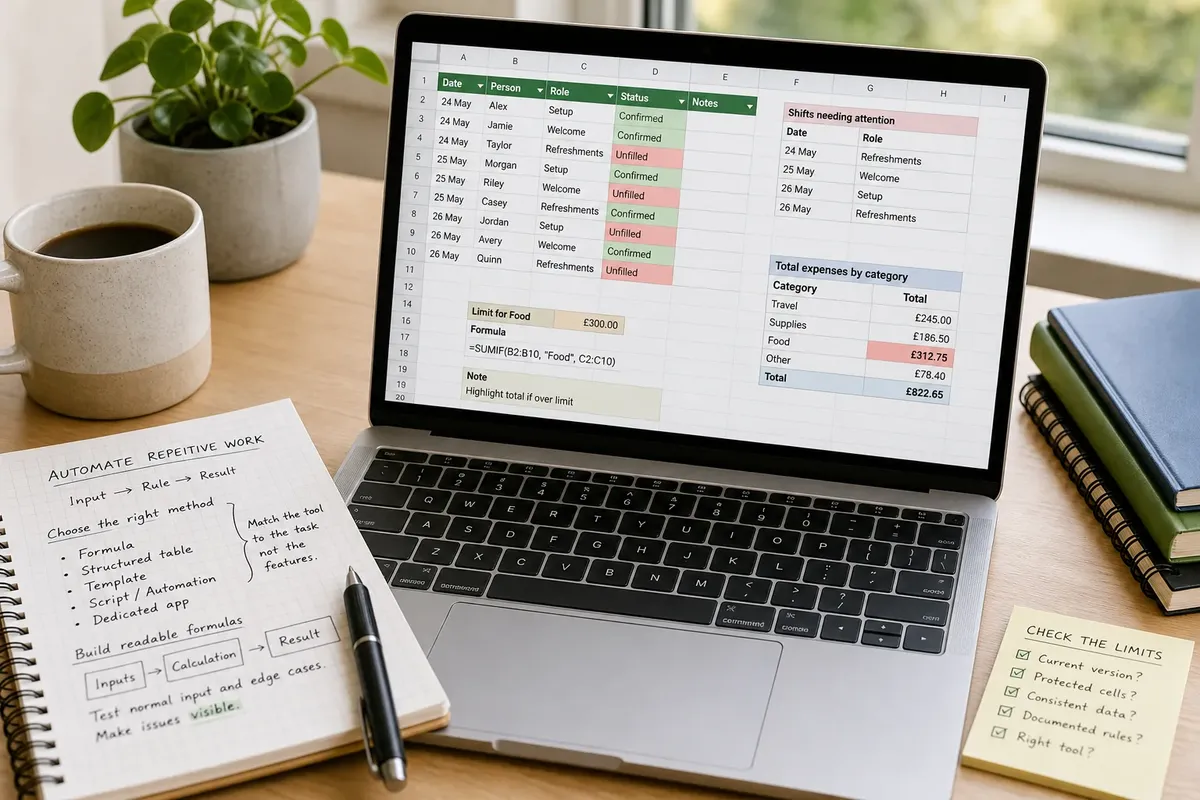
To automate repetitive spreadsheet work, start with one task you already repeat: adding up expenses, flagging overdue dates or finding a value from a list. A clear formula can take over that routine while leaving its inputs and logic visible.
A spreadsheet works well when the information is structured, the rule is easy to explain and someone can check the result. It is less suited to processes that depend on controlled approvals, complex permissions or automatic messages to many people. Choose the method to match the task, not the number of features in the software.
Choose the right method
Write down what goes in, what rule acts on it and what result you need. Then choose the simplest tool that can handle those parts.
- Formula: If the same calculation or condition applies to changing values, use a formula; if the logic becomes hard to read, split it into named intermediate columns or explain the assumption in a note.
- Structured table: If each item has the same fields, use one row per item and consistent column headings; if the records need different shapes, separate them into suitable tables rather than mixing unlike information.
- Template: If people repeat the same task with new details, make a template with clearly marked input cells; if users keep overwriting calculations, protect those cells or use a form for data entry.
- Script or built-in automation: If the work repeats actions that formulas cannot handle cleanly, use a script or built-in automation; if the rule is difficult to explain or maintain, keep the process manual or move it to a more suitable tool.
- Dedicated app: If the process needs approvals, controlled access or coordinated updates from many people, use a purpose-built app; if the sheet still helps with analysis, retain it for that limited role.
Imagine a community group has a rota with names, dates and roles, and one volunteer manually checks which shift is still unfilled. They add a consistent status column and a formula that flags rows marked “unfilled”; the visible result is a filtered list of shifts needing attention. If the group changes how it assigns shifts, they must update the rule or the flag will no longer reflect the process.
Build readable formulas
For recurring calculations, label each input and keep the formula near its result. In a monthly expense sheet, use columns for date, category and amount, then use a function such as SUMIF to total a chosen category. If a total should trigger attention after a limit, use conditional formatting and make the limit clear in the sheet.
Prefer a built-in function over a script when it expresses the rule plainly. A lookup function, for example, can match a code to a description in another table. If a formula grows difficult to inspect, divide it into smaller calculations or add a short note stating the assumption it relies on.
Before relying on a formula, try an ordinary input and an edge case. If a blank date or an unfamiliar category produces a misleading answer, add a validation rule, an error check or a clear instruction for handling that entry. The visible result should help a user spot missing or unexpected data rather than quietly treating it as valid.
Keep records consistent
For a changing plan or a personal tracker, give each fact its own column. A volunteer rota might have separate fields for person, date, role and status. A reading log might track title, date started and next action. Distinct fields make sorting and filtering more reliable than packing several details into one cell.
Use data validation for entries that should come from a short list. A drop-down can offer “pending”, “confirmed” and “cancelled”, for instance. If those labels could be misunderstood, add a brief explanation beside the table. Store dates as dates, not free-form sentences, and pair colour cues with text so the meaning remains clear.
Keep only fields that support an action or decision. If a column does not help you calculate, find, compare or follow up on an item, remove it. Fewer fields mean less repeated data entry and fewer chances for inconsistent values.
Check the sheet’s limits
- If several versions circulate and nobody can identify the current one, move the working record to a shared, controlled location; if only one copy is needed, mark it clearly and remove obsolete copies from routine use.
- If users overwrite formulas during data entry, protect calculated cells or move entry to a form; if the formula itself changes often, document the rule and review it before changing protection.
- If the same category appears under several spellings, add a validated choice list; if the categories are genuinely different, define them clearly rather than forcing them into one label.
- If a process depends on an undocumented rule known by one person, write the rule beside the relevant fields; if the rule cannot be stated simply, review whether the sheet is the right tool.
- If access controls, approvals or a dependable change history are central, use a tool designed for those needs; if the sheet is only used to explore figures, keep it for analysis rather than as the official record.
- If people repeatedly copy data between services, use an appropriate integration or move the record to a system that connects those tasks; if the transfer is occasional and easy to verify, retain a documented manual check.
These checks help separate a useful spreadsheet from a process that needs more structure. A sheet can remain handy for analysis while a form collects entries or a workflow app manages approvals.
What should you use?
Can a spreadsheet automate a task?
Yes. A formula or rule automates a task when it performs repeatable work that would otherwise be done by hand. A sheet that only stores values is a record; one that recalculates or flags entries also carries out a rule.
Should I use formulas or a script?
Use formulas for calculations and straightforward conditions that a reader can inspect in the sheet. Consider a script when the task involves repeated actions across sheets or services, and make sure its purpose and way to pause it are clear.
When is a spreadsheet no longer suitable?
Consider another tool if the work depends on formal approvals, tightly controlled access or coordinated updates that the sheet cannot handle safely. The spreadsheet may still be useful for planning or analysis.
How can I make a sheet easier to understand?
Use plain headings, consistent data types and a visible distinction between inputs and calculated cells. Explain assumptions that are not obvious, and avoid relying on a formula only its creator understands.
Keep automation modest
Good spreadsheet automation handles a repeatable task without obscuring the rule or the decision it supports. If a colleague can trace how an input leads to an output, the sheet is easier to review and change.
For spreadsheet automation, begin with the smallest useful rule and check how it behaves when an input is blank, unusual or changed. That quick review can reveal whether a formula is enough, whether the sheet needs clearer structure or whether another tool should take over.