The Button That Looks Like a Label
Button design should make an action easy to spot. Use clear verbs, distinct styling and sensible placement so people know what they can do next.
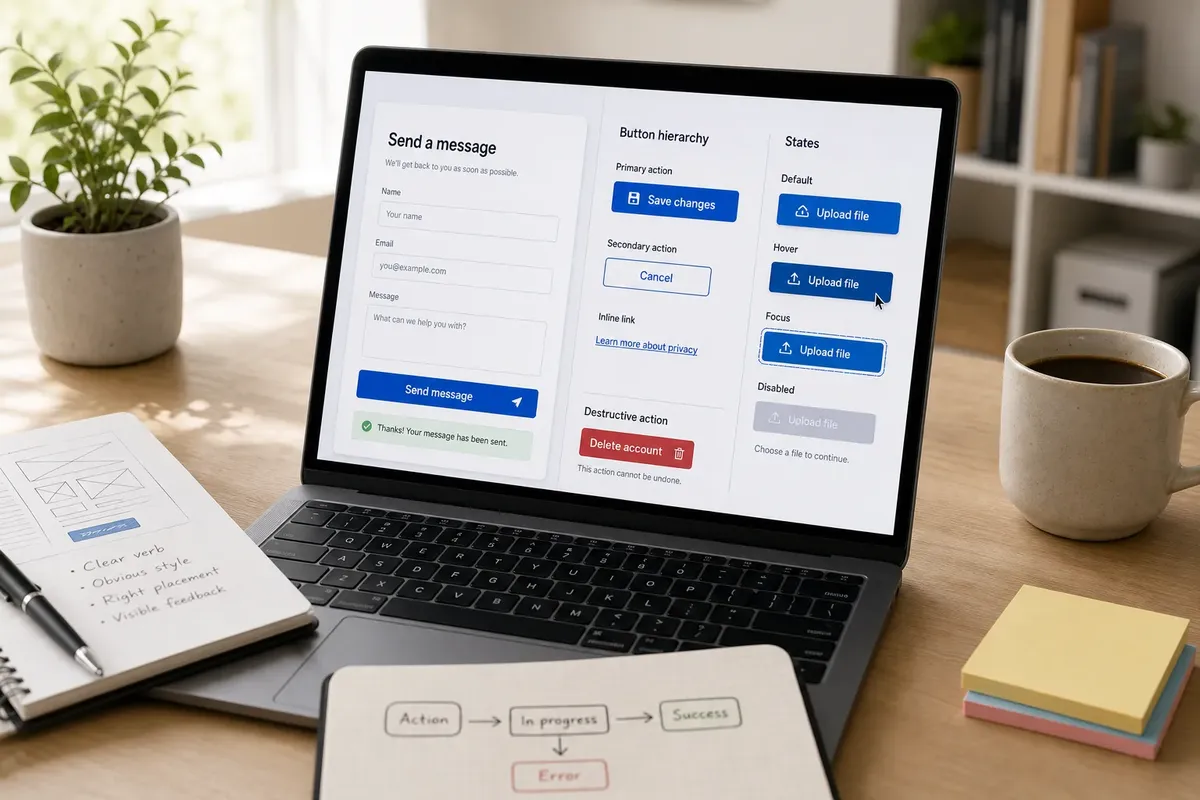
A button that looks like a caption can make a working interface feel oddly inert. Button design should show, at a glance, which words describe the page and which invite someone to act. The fix is often modest: choose a specific verb, give the control a recognisable shape, and leave enough space around it to read as interactive.
Words that announce action
“Continue” tells someone to move on, but not what they are agreeing to do. “Review your order” sets a clearer expectation. Good button wording names the next action in the user’s own terms, without trying to explain the whole process inside a small rectangle.
Start with a verb, then add the object when it removes doubt: “Save draft”, “Send message”, “View plans”. Avoid vague labels such as “Go”, “Click here” or “Submit” when a more informative phrase fits. A button should make sense beside the surrounding content, not rely on a person remembering a heading from several screens earlier.
Keep the wording proportionate to the consequence. “Delete account” is clearer than “Continue” when the action is destructive; a nearby confirmation can explain the effect in more detail. Don’t soften an irreversible action until it sounds harmless, and don’t make a routine next step sound alarming.
Button design signals
Text alone does not have to carry the full burden. A filled background, a border, a familiar button shape and generous clickable area can distinguish a control from ordinary copy. Pick a visual treatment that belongs to the interface, then use it consistently for the same kind of action.
Colour can help, but colour on its own is a poor signal. A link in a paragraph might be blue and underlined, while a primary form action might use a filled brand colour. The difference should remain visible in shape, placement or decoration as well, including for people who cannot distinguish particular colours.
- Primary action: use the strongest button treatment for the main task on that screen.
- Secondary action: use a quieter outline or text treatment, while keeping it recognisable as interactive.
- Inline link: distinguish it from surrounding prose with a conventional link cue, such as an underline.
- Disabled control: make its unavailable state clear and explain what is needed to proceed where that would help.
Restraint matters. If every control is filled, bright and large, the eye gets no useful hierarchy. If every action is a bare line of text, people must inspect each one to work out whether it is a link, a heading or a label.
Placement and surrounding text
Position can clarify an action before anyone reads it. A “Save changes” button near the end of a settings form belongs to that form; the same phrase stranded in a page header may look like a global command. Keep a control close to the content it affects, and separate unrelated actions so they do not read as one crowded cluster.
Make the action’s scope visible. If a row of settings has its own “Remove” control, keep it beside that row rather than placing one ambiguous button at the bottom. If an action applies to an entire page, position it with the page-level controls. People should not have to guess what will change when they press it.
Say you are designing a small portfolio page with a sentence about a new illustration and the words “See the collection” underneath. If those words use the same plain styling as the description, readers may scan past them as a caption. Give them an underlined link treatment or a distinct button style, and place them beside the illustration; the expected result is that the route to the collection is easier to recognise.
States and feedback
A control needs to communicate more than its resting appearance. Hover styling can help desktop users, but it cannot be the only indication: touchscreens have no pointer hover. Include a visible keyboard-focus state so someone moving through a page with the Tab key can locate the current control.
After activation, the interface should respond in a way that matches the action. A form button might change to “Sending…” while a request is in progress, then show a success message or a useful error. Avoid making the button appear to do nothing; a delayed response can otherwise prompt repeated clicks.
Disabled buttons deserve particular care. A greyed-out “Create account” control without an explanation leaves someone guessing. A short note beside it—such as “Choose a username to continue”—can reveal the missing condition. If the task can be completed after correcting a field, point to that field in the error message rather than relying on colour alone.
Questions about buttons?
Should every action look like a button?
No. A link is suited to moving to another page or location; a button is suited to an action in the current interface, such as saving or opening a panel. Use the convention that matches what happens next.
Can a text-only control still be clear?
Yes, when it has a distinct link or button treatment and sits near the content it affects. Plain text that is indistinguishable from a label is the problem, not the absence of a filled background.
How can I check whether a control is obvious?
Look at the screen without interacting and ask someone unfamiliar with it to point out what they expect to be clickable. Then use the keyboard to move through the controls and check that focus is visible and the order makes sense.
A useful final pass
Read each action aloud in context: “I’m choosing ‘Send message’ to send this message.” If the sentence sounds incomplete, the wording may be too vague. Then compare its appearance with nearby labels, links and headings. Clear button design is not decoration added at the end; it is part of how the interface explains what can happen next.