Let a Script Rename Files, Not Make Decisions
Use a file-renaming script to preview each proposed change, catch conflicts, and keep an undo record before altering an important folder of files.
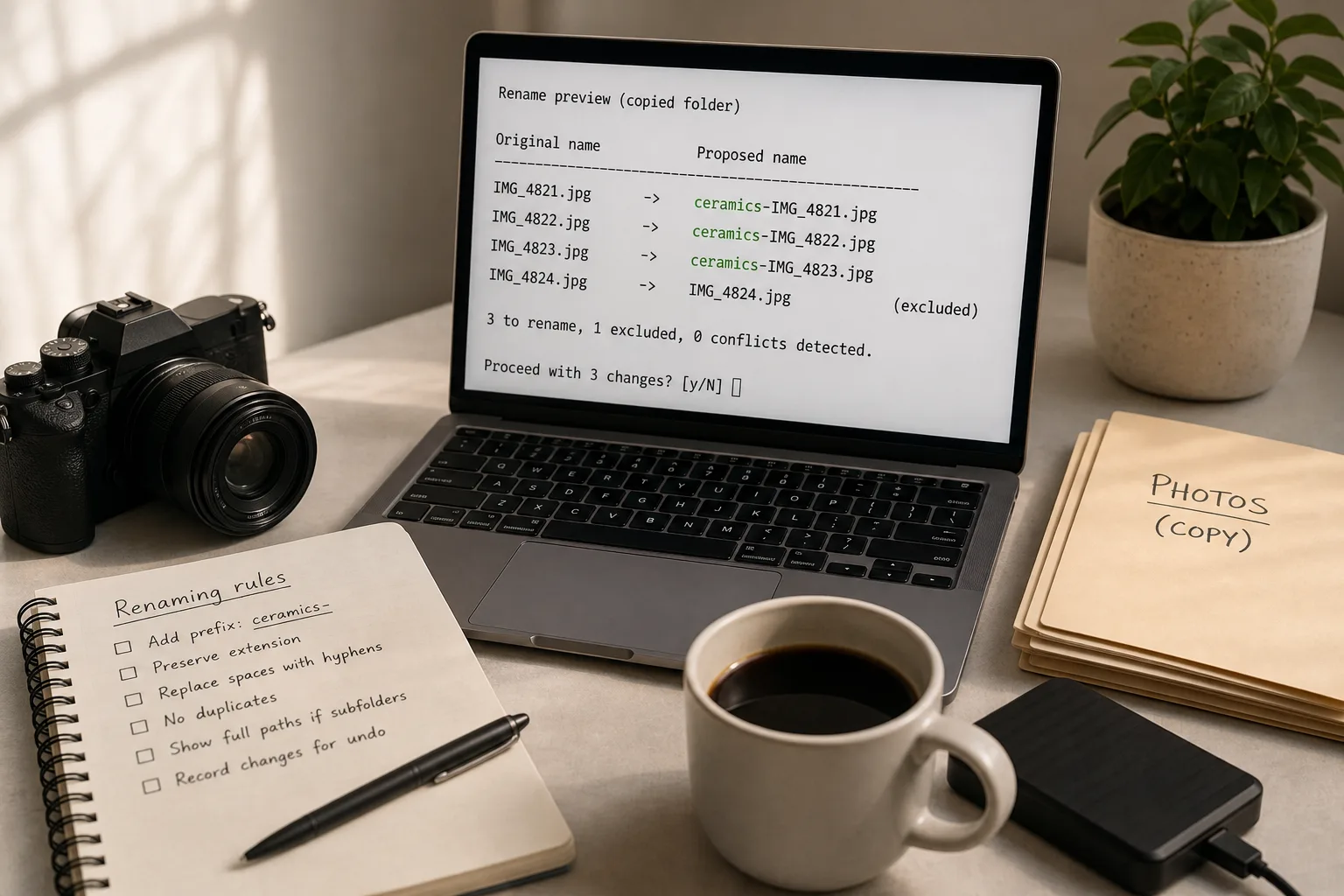
You open a folder of camera exports and see IMG_4821, IMG_4822, and IMG_4823. A file-renaming script can make those names easier to scan, but the useful boundary is clear: let code apply explicit rules, and keep judgment in your hands.
Start With One Folder
Bulk renaming goes wrong when a script is given too much responsibility too soon. “Make these names useful” invites guesses about subject, date, project, or version. A mechanical rule is easier to inspect: add a fixed prefix, replace spaces with hyphens, or change a known suffix.
Work on a copied folder first. Include ordinary files and awkward cases: a name with spaces, a duplicate, an accented character, and a file already following the intended pattern. This preview shows how the rules behave on those files in that environment; it does not establish that the script handles every file, operating system, or later production run correctly.
Keep the source files untouched until the proposed names look right. In Python, separate the code that calculates a new name from the code that calls Path.rename(). In a graphical tool such as Advanced Renamer, inspect the preview pane before using the final rename control.
Preview Every Change
A preview should show each original name beside its proposed name. It should not merely print a reassuring message or display a few sample rows. A complete list makes collisions and unexpected transformations visible while you can still cancel without changing anything.
For a small Python utility, build a list of source and destination paths, then check that every destination is distinct and does not already contain an unrelated file. Print the pairs in a stable order. Put an explicit confirmation after the preview, with “no” as the default if the user presses Enter or closes the prompt.
Say you have a copied folder containing three photos named IMG_4821.jpg, IMG_4822.jpg, and IMG_4823.jpg, plus a scanned receipt named IMG_4824.jpg. You want to add the prefix ceramics-. The script proposes a new name for each file and checks that none of the destinations already exists. You review the list, remove the receipt from the selection, and confirm the remaining changes. The visible result should be the three selected photos with the prefix and the receipt unchanged; that result describes this copied folder and run, not every folder the script might encounter.
It is not worth building an elaborate preview interface for a one-time task involving a handful of files. A plain text table, a copied folder, and a deliberate pause are often enough. Put effort into complete listings, conflict checks, and a record of changes rather than decorative controls.
When Does a Preview Look Wrong?
Why are some files missing?
The script may read only the selected folder while the files sit in subfolders, or its filter may exclude extensions it does not recognize. Check the selected path and filter first; include descendants only if the task calls for them, and then review their full paths.
Why do two files get the same name?
A rule may remove a distinguishing part of the original names, or different source folders may contain files with matching names. Make the collision check stop the run and identify both sources; add numbering only if that rule is intentional and visible in the preview.
Why did the script change more than expected?
A broad replacement can alter text in the middle of a name, not just a prefix or suffix. Narrow the rule to the exact portion that should change, then compare the original and proposed names again on a fresh copy.
Why do accented characters look different?
Character handling can vary by operating system, file system, programming library, and renaming tool. Before relying on any normalization behavior, check how the specific tool processes the names on the system where the files will be used; preserve the original spelling when there is no clear need to transform it.
Set Predictable Rules
A reliable renaming rule describes a transformation, not an interpretation. “Replace spaces with hyphens” can be checked against each name. “Make the names cleaner” cannot. If someone must decide what a file depicts or which project it belongs to, leave that choice for manual review.
Write down the rule in plain language before coding it. For each case below, check the stated condition and choose the indicated action; if the condition does not hold, use the alternative rather than letting the script guess.
- Extensions: Check whether the rule changes the file extension. If it does, stop unless changing the extension is the task; otherwise preserve it, since a new suffix does not convert the file’s contents.
- Capitalization: Check whether proposed names differ only by letter case and confirm how the destination filesystem handles those names. If its documented behavior treats them as conflicting, stop and revise the names; if it distinguishes them, apply the chosen capitalization rule consistently while retaining a conflict check for exact duplicate destinations.
- Whitespace: Check for leading spaces, repeated spaces, and tabs. If the rule accounts for each kind, preview those transformations; otherwise leave those names unchanged and revise the rule before including them.
- Duplicates: Check whether two sources map to the same destination or a destination already exists. If either condition is true, stop and show the conflict; otherwise continue without inventing a suffix.
- Subfolders: Check whether the selection includes descendants of the chosen directory. If it does, show each full path and review the scope; otherwise keep the operation within the selected folder.
- Existing prefixes: Check whether a file already begins with the intended prefix. If it does, leave it unchanged; otherwise add the prefix once, so a second run does not repeat it.
These choices make the tool easier to explain and revisit. Case-only names deserve particular care: behavior depends on the exact destination filesystem and configuration, so do not assume that names differing only in capitalization are either always safe or always conflicting. Check the destination’s documented behavior, and have the script detect and report any collision it can identify before proceeding.
How Can You Undo a Rename?
Can the script restore original names?
It can if it records each exact old and new path before changing anything. Save that mapping in plain text or a structured file such as CSV, then use it to build a separate undo operation rather than trying to infer old names from new ones.
Should you use a backup or an undo log?
They serve different purposes: a backup preserves the files, while an undo log records name changes. For important folders, keep a separate copy as well as the mapping, because a name-change record cannot restore a file that was deleted or overwritten.
What if part of the operation fails?
Stop at the first unexpected error and report which items changed and which did not. A script that continues quietly can leave a folder in a mixed state that is harder to understand than a clear interruption.
How long should the log be kept?
Keep the log until you have checked the renamed folder and no longer need to reverse the operation. If the files belong to an ongoing project, store the mapping with the project notes or in the same backup location, rather than a temporary directory likely to be cleared.
Use a Safe Run Order
When troubleshooting a file-renaming script, use the same sequence each time. It helps distinguish a rule problem from a path problem and keeps a quick fix from becoming another batch of unintended changes.
- Copy the source folder. Check that the copy contains the intended files and that the original remains untouched; if either check fails, stop and make a valid copy before proceeding.
- Run preview mode. Display every source path and proposed destination in a stable order; if the listing is incomplete, correct the path or filter rather than applying changes.
- Check rules and conflicts. Look for missing files, repeated destinations, unexpected extension changes, and names that should remain unchanged; if any appear, revise the rule and preview again.
- Apply only the reviewed batch. Confirm after the preview; if the selection or proposed names have changed since review, cancel and produce a fresh preview.
- Inspect the result. Compare the renamed folder with the saved mapping and open a representative file; if the names or file contents differ from expectations, stop and use the mapping or backup to recover.
- Keep the mapping and backup. Save the old-to-new list and retain the original copy until you accept the result; if either is missing, do not treat the operation as readily reversible.
These local checks establish only what happened with the selected files, rules, software, and environment in that run. They do not establish universal correctness or production readiness. Before reusing the script in a different folder or environment, make a fresh copy, preview the full selection, and review conflicts there too.
Keep Judgment With You
File-renaming automation is useful when it removes repetitive typing without pretending to understand the files. A script can add a consistent prefix, apply a known pattern, and flag a conflict. It cannot reliably decide whether a photograph belongs to a client, whether “final” really means final, or whether a vague label is worth preserving.
That division keeps a file-renaming script modest: it proposes names, checks mechanical risks, and records what it changes. You decide which files belong in the batch and whether the proposed names make sense. A preview is most useful when it makes those decisions visible before the rename, not when it suggests the script can make them for you.
More to tinker with
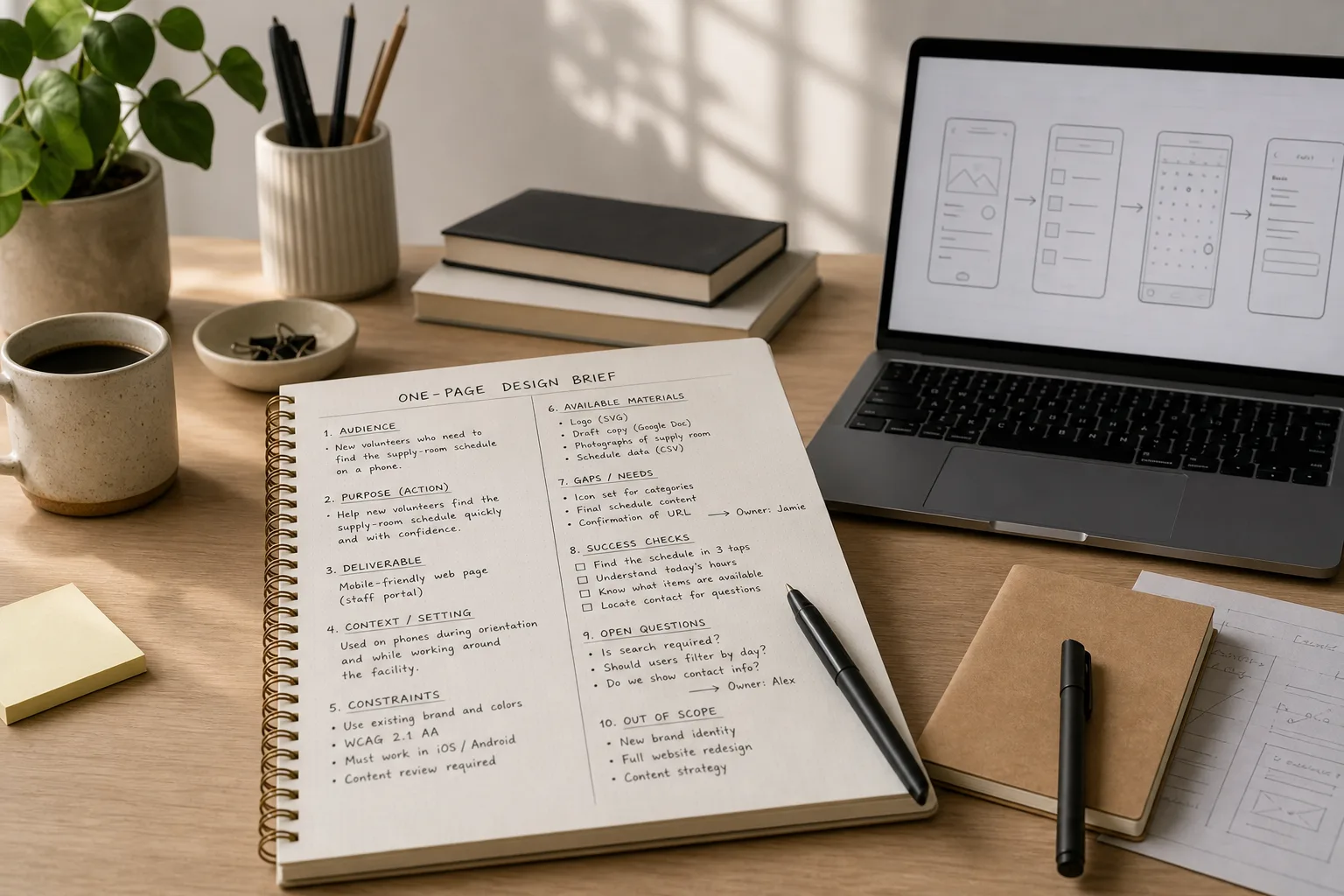
A One-Page Brief Before You Open the Design App
A one-page design brief helps you settle audience, purpose, constraints, and open decisions before visual exploration…

The Button That Looks Clickable but Does Nothing
Make interface buttons easier to trust by separating active controls from decoration with contrast, shape, clear…