The Button That Looks Clickable but Does Nothing
Make interface buttons easier to trust by separating active controls from decoration with contrast, shape, clear labels, and consistent interaction states.
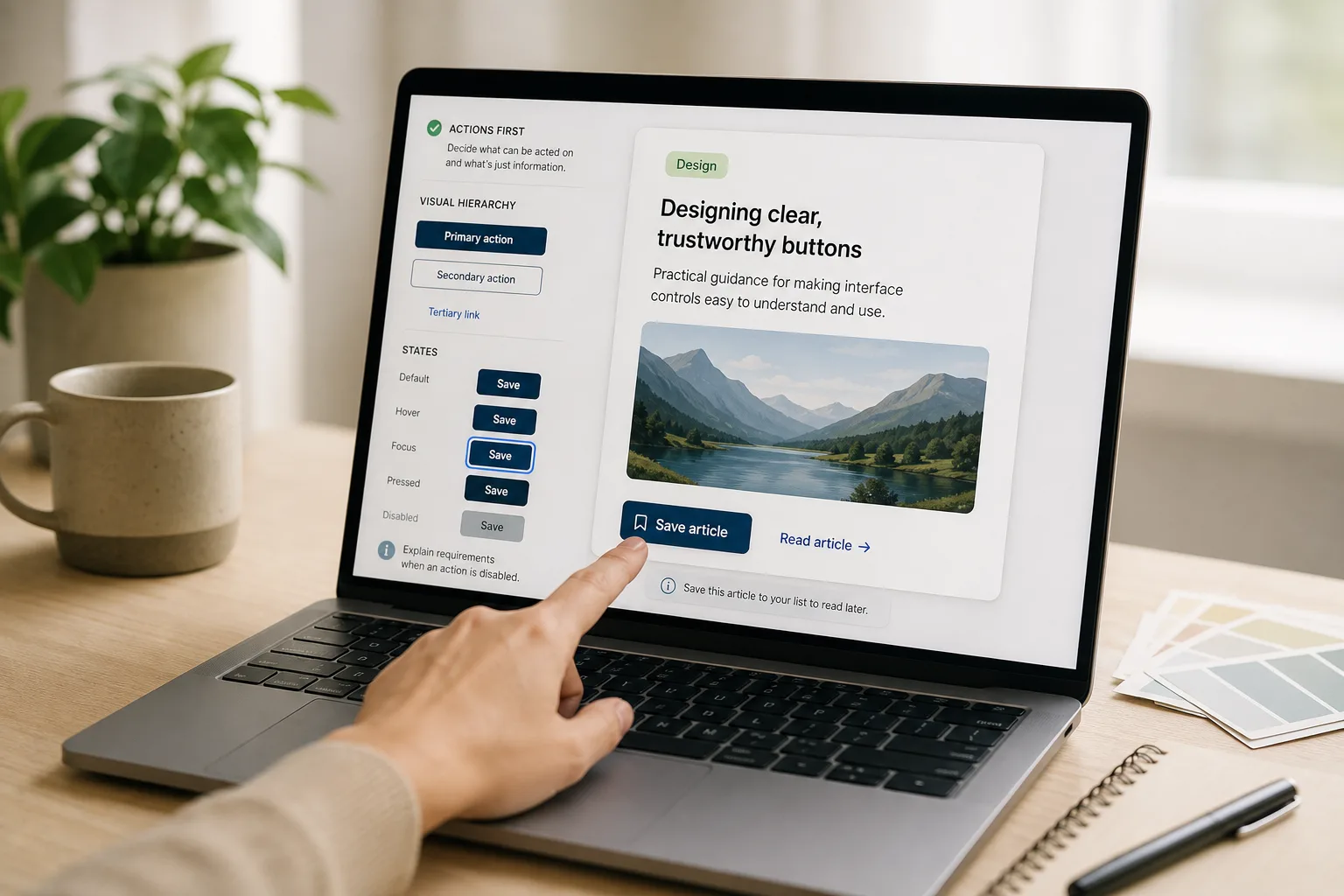
You tap a dark, rounded rectangle labeled “View details,” then nothing happens. A button that looks clickable but does nothing has made a promise the interface cannot keep. The fix starts with deciding what can be acted on, then making its purpose and response clear.
That does not mean every control needs a bright color or a pointer cursor. Decide which elements perform actions, give those elements a consistent visual language, and show what changes after activation. This keeps invitations distinct from decoration.
Start with actions
Before adjusting color, list the actions available in the part of the interface you are designing. A card might open a detail page, a star might save an item, and a heading might simply introduce the card. Naming those roles makes it easier to tell which shapes should invite a click.
For each element, ask:
- Observation: It causes a meaningful change, such as opening a page or saving a choice. If: It does, then style and label it as a control; otherwise: keep it visually secondary.
- Observation: The same action is available through another control nearby. If: Both controls are needed for distinct contexts, then clarify their separate roles; otherwise: remove the redundant invitation.
- Observation: It is a label, illustration, status, or grouping surface rather than an action. If: It only informs, then avoid control-like treatment; otherwise: identify the action it performs.
- Observation: Activating it leads to a destination. If: It does, then use a link; otherwise: use a button for an in-place change.
- Observation: A nearby action could be mistaken for part of the heading or illustration. If: The boundary is unclear, then add separation; otherwise: keep the established spacing.
- Observation: An action is unavailable in the current state. If: It is, then show that state and explain the requirement nearby where useful; otherwise: do not mute its appearance.
A colored tag can identify a category, while a raised, high-contrast tag-shaped element may suggest that it opens one. If the tag is informational, keep it quieter than the actual action beside it.
Use a link when the result is a destination, such as opening an article. Use a button when the interface changes in place, such as revealing a panel or saving a selection. Their appearances can belong to the same design system without implying that their roles are interchangeable.
Build visual hierarchy
Contrast, shape, spacing, and placement all signal that an element may respond. None has to do the job alone. A clear button might use a visible boundary or filled surface, a label that names an action, and enough space around it to separate it from nearby content. A decorative accent can use color or geometry too, but should not collect all the cues reserved for controls.
Choose a small family of control styles. A primary action might use a filled background, while a secondary action uses a border and quieter text. A plain text link can remain underlined or otherwise distinct from surrounding copy. Reuse these patterns instead of inventing a new treatment for each card.
Check both the text and the button surface. Pale text on a pale fill can make a real action seem disabled; a dark decorative block can look more important than the control. If your design system includes color tokens, use the intended action and text colors rather than selecting a one-off shade by eye.
Shape is not a universal code. A rounded rectangle may suggest a button in one product and a label in another. Give it meaning through repeated use: if filled rounded rectangles submit or change something throughout the interface, reserve that treatment for elements that do so.
Keep an action near the content it affects, with enough separation that it does not seem part of a heading or illustration. Avoid placing a fake button inside a larger clickable card. Overlapping targets can make it uncertain whether a person is opening the card or activating the supposed button.
Choose useful labels
A label should help someone predict what will happen. “Save draft” says more than “Go,” and “Open schedule” gives a clearer destination than “Click here.” Prefer a direct verb and name the object or outcome when the verb alone could be vague.
Keep wording aligned with the interface state. If a button changes a saved item to an unsaved one, its label might change from “Save” to “Remove from saved.” A label that remains “Save” after saving may suggest that the first activation failed.
Short labels work when context supplies the missing detail. “Add” may be clear beside a field titled “Email address,” but unclear among several lists and objects. Read the label in place and ask whether nearby text resolves its meaning.
Do not use visual styling to compensate for a label that hides the action. A bright button labeled “More” is still ambiguous if it could open a menu, expand a description, or load another page. Clarify the label, or add nearby explanatory text when the result needs more context.
Design interaction states
A control is not finished when its default appearance looks right. Consider the default, hover, keyboard focus, pressed, and disabled states where they apply.
- Default: Make the available action identifiable before interaction.
- Hover: Add a restrained change, such as a shift in fill or border. Do not make hover the only sign that the element is interactive.
- Focus: Provide a visible outline or other clear indicator for keyboard users moving through controls.
- Pressed: Give a brief visual response that confirms activation while keeping the control recognizable.
- Disabled: Show that the action is unavailable and avoid implying that activation will work.
A disabled control should not be the only clue about a requirement. If someone cannot submit until required fields are complete, explain what is missing near the relevant field or form. Low contrast with no explanation can look like an accidental design error rather than a purposeful state.
Focus deserves particular attention because it may not appear during pointer use. Keep its treatment distinct from the button’s border and surrounding decoration. Avoid removing the browser’s default outline unless the replacement is equally clear against every relevant background.
For a toggle or save action, reflect the resulting state in both appearance and accessible name where appropriate. A star that changes color can help, but color alone may not tell someone whether an item is saved. Add a clear label, state text, or other suitable feedback.
Which controls need buttons?
Should a whole card be clickable?
Make the whole card clickable only when it has one clear destination and the interaction remains easy to understand. If it contains separate actions, such as opening a story and saving it, provide distinct controls with clear boundaries instead of letting one large target compete with the other.
When should a button look disabled?
Use a disabled appearance when the action is genuinely unavailable, and explain the reason nearby if the person can take steps to enable it. If the action is available, do not mute its contrast merely to make the screen feel quieter.
Is hover enough to show a control?
No. Hover is unavailable on many touch devices and does not help someone navigating by keyboard. The default appearance should already make an active control recognizable, with hover and focus adding further feedback.
Should an icon have a label?
Use a visible label when the icon’s meaning could be unclear or the action has important consequences. A familiar icon can have an accessible name for assistive technology, but that name should describe the action rather than the image.
Check controls in context
Review the screen at its actual size, not only as a collection of enlarged components. Look at the first thing someone might tap, scan, or tab to. Ask whether every apparent control has a result, every real action looks available, and decorative elements remain visibly secondary.
Check the interface without relying on a single cue:
- Observation: In grayscale, active and decorative elements separate through value and shape. If: They do, then keep the hierarchy; otherwise: strengthen the controls’ boundaries or reduce decorative emphasis.
- Observation: Keyboard focus is easy to spot while moving through controls. If: It is, then retain the focus treatment; otherwise: add a distinct outline or indicator.
- Observation: Button and link labels make sense aloud in context. If: They do, then keep them; otherwise: replace vague wording with a direct action and object.
- Observation: Disabled and selected states are distinguishable from decoration. If: They are, then preserve their cues; otherwise: revise the contrast, boundary, or state text.
- Observation: Touch targets crowd one another or depend on hover. If: They do, then separate the controls and make their default states clearer; otherwise: keep the current layout.
- Observation: A control’s visible label matches its result. If: It does, then keep the wording; otherwise: rename it or change its behavior so the two agree.
Say you are designing a recipe card with a photo, a title, and a “Save recipe” action. The starting point is a colored star beside the title, with no label or boundary, so it could be decoration. You give it a separate button boundary, add the explicit label, and show a clear saved state after activation. The resulting interface lets a reader identify the control and tell whether the recipe is saved; the tradeoff is that the card gains a little visual structure, so the boundary should stay restrained.
It is not worth adding a different animation, shadow, or color to every control just to make the screen feel responsive. A small, consistent change across hover, focus, and pressed states is easier to recognize and maintain than a collection of decorative effects.
Keep affordances honest
Before shipping a screen, compare its visual promises with its actual behavior. If a control looks active, connect it to an action. If an element is decorative, give it less visual weight than the controls around it. If an action is unavailable, communicate that state and, where useful, explain why.
When deciding whether a button looks clickable but does nothing, inspect the whole chain: the action, its visual treatment, its label, and the feedback after activation. That check catches both the false invitation and the real button styled into the background. A trustworthy interface makes each control’s purpose visible before anyone has to guess.
More to tinker with
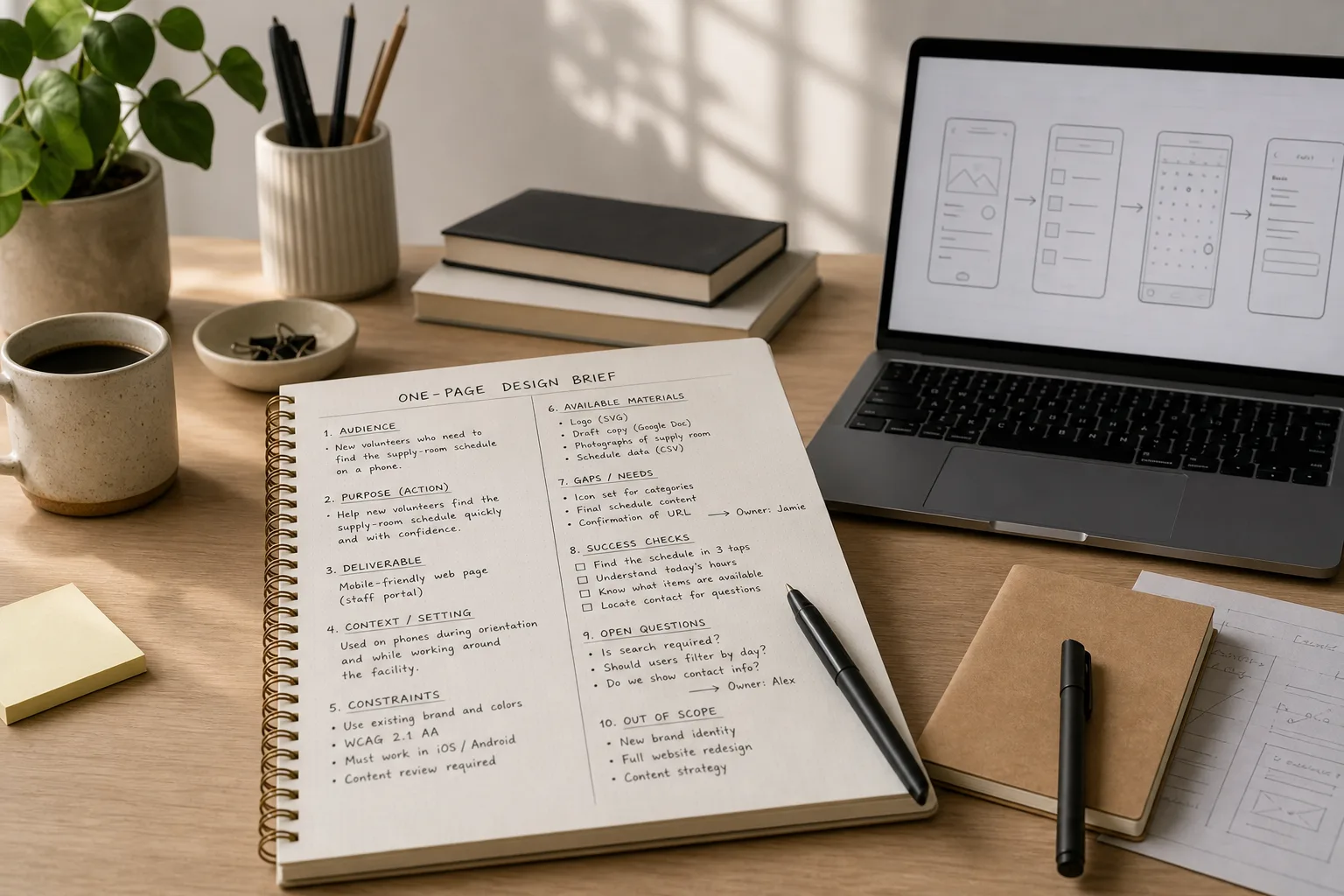
A One-Page Brief Before You Open the Design App
A one-page design brief helps you settle audience, purpose, constraints, and open decisions before visual exploration…
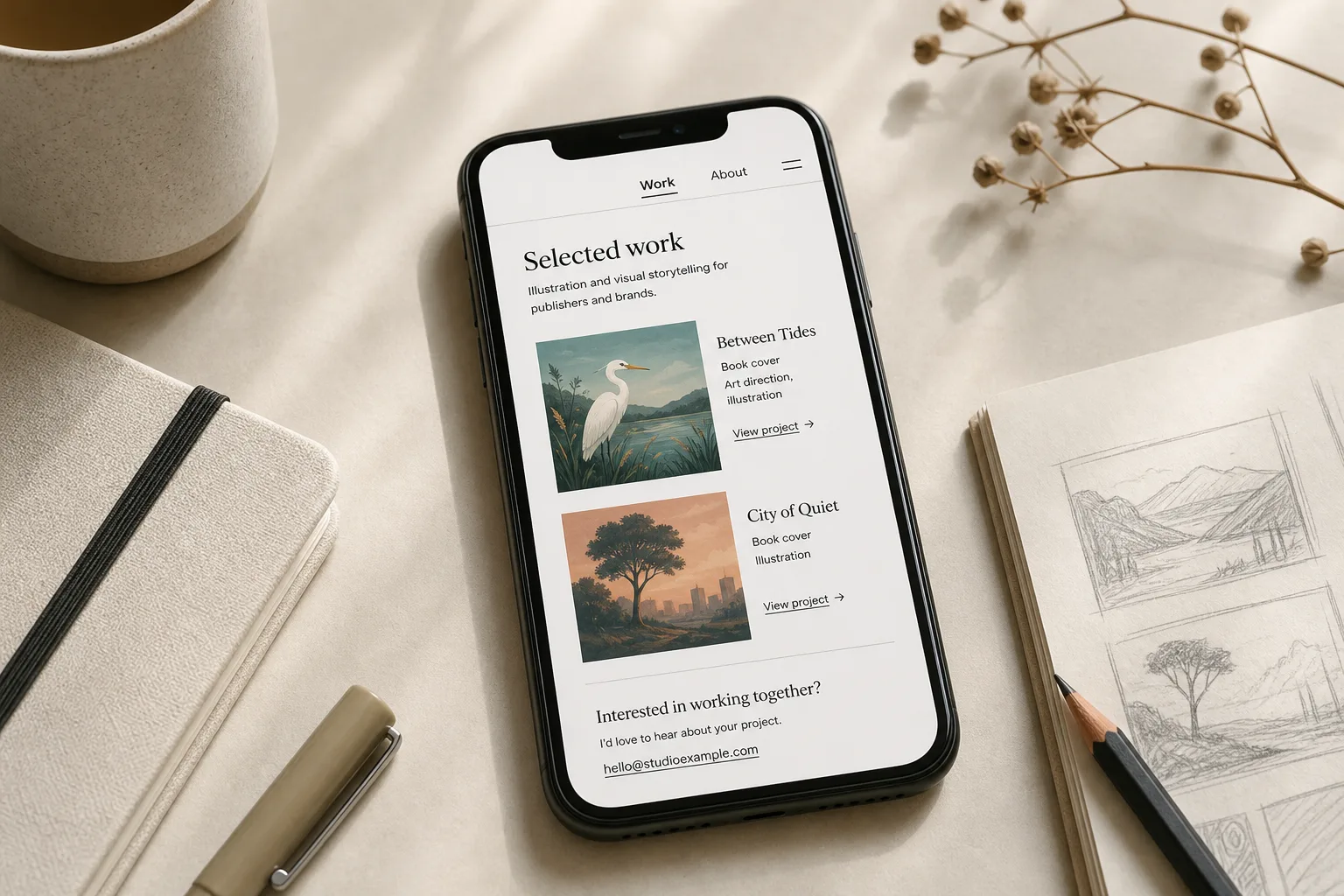
A Personal Website With Three Pages and No Maze
A personal website with three pages can show your work, explain your practice, and make contact…