When a Creative App Adds One Tool Too Many
Evaluate a new creative app feature by naming its task, checking the result on a copy, and deciding when it beats your familiar workflow.
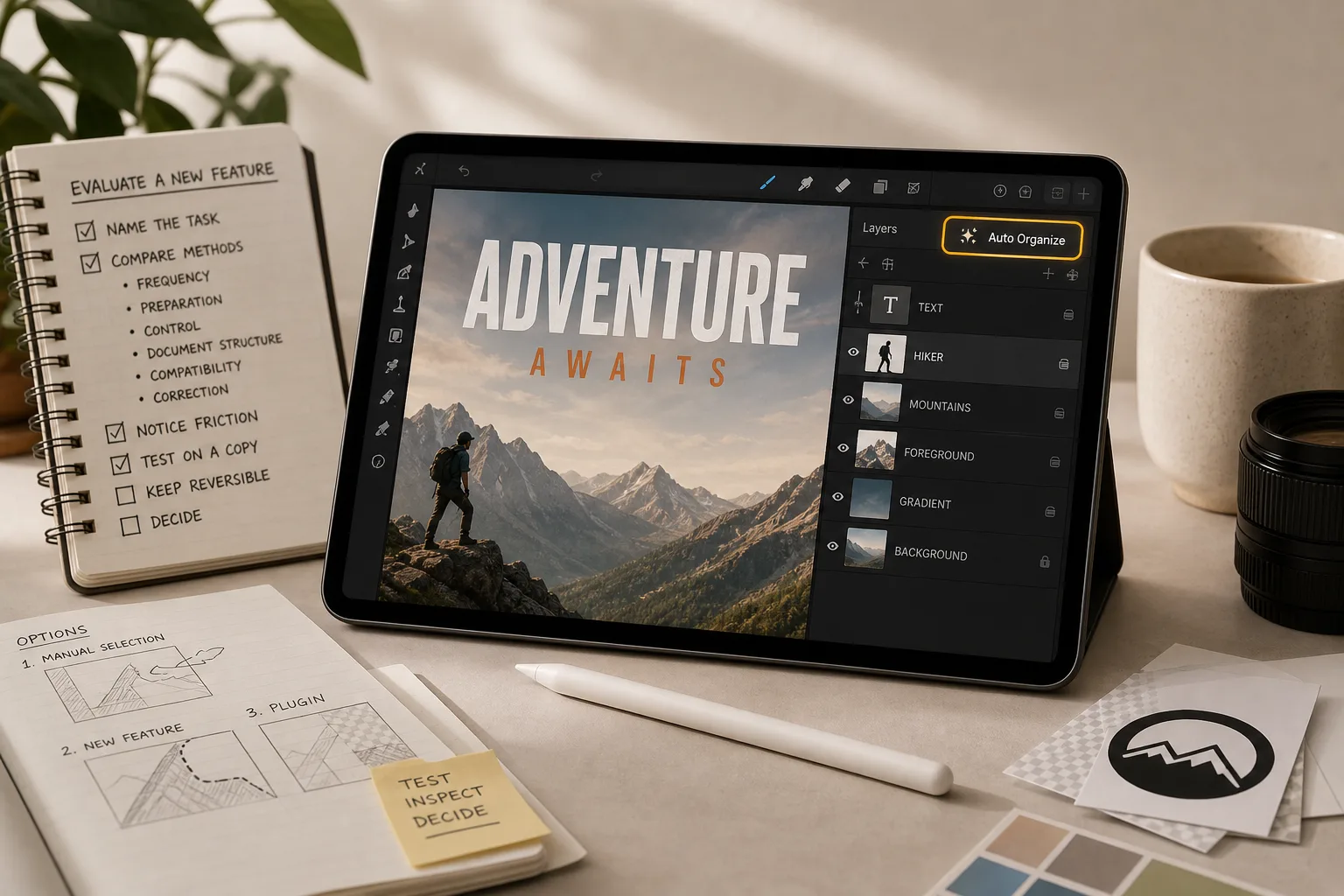
You open a drawing app to clean up a poster and notice a new button beside the brush controls. Evaluating a new creative app feature starts with a specific job: does this button help you finish something you already need to do, or does it add another stop to the process?
Name the task
A feature earns a place when it helps complete a recognizable task. “Make the title easier to read over a busy photo” is a task. “Try the new lettering tool” is an activity. The distinction matters because activities can absorb attention without improving the work.
Describe the starting material, the action, and the result you need. For a layer-cleanup feature, the starting point might be a poster file with overlapping shapes. The action might be sorting related layers. The result should be a document a collaborator can understand and continue editing.
This description exposes the feature’s limits, too. A tool that tidies layer names may help with handoff, but it does not decide which shapes belong together. An automatic background extension may add pixels, but it does not determine whether the composition needs more empty space. Keep the creative decision visible.
Creative app feature fit
Compare the new option with the route you already use: a keyboard shortcut, a built-in command, a plugin, another application, or a manual technique. The useful comparison is not “new versus old” in the abstract. Ask which route makes this particular task easier to inspect and control.
- Frequency: If the task recurs in your projects, then consider a feature that reduces its friction; if it is unusual, then keep the familiar method available instead of building a new routine.
- Preparation: If setup requires extra accounts, file conversion, or repeated prompts, then compare those steps with the current route; if preparation is minimal, then continue to check the result and cleanup.
- Control: If you can inspect and adjust the output, then try it on a copy; if the result is hard to revise, then preserve a separate source or use a reversible method.
- Document structure: If layers, masks, or paths remain understandable in your saved file, then the feature may fit the handoff; if structure becomes opaque, then favor a method that keeps the source clear.
- Compatibility: If collaborators can open and edit the resulting file in their usual software, then keep that route under consideration; if they cannot, then export a compatible copy or choose another method.
- Correction: If typical flaws are easy to fix, then use the feature for those cases; if correction takes as much judgment as the original task, then return to the manual route.
Imagine you make event posters and have a sponsor logo with a plain background to remove. You duplicate the logo layer, use the app’s automatic selection on that copy, and inspect the edge against a contrasting color. If the selection leaves a mask you can adjust and the file remains organized, the feature may suit simple logos; if it leaves ragged edges or flattens the layer, you can discard the copy and use your familiar selection method. This hypothetical result applies only to that task, app setup, and logo—not to every image or future version.
A small improvement can be enough. “Useful” should name a task and a condition, rather than the pleasant feeling of discovering a button.
Notice added friction
Friction includes more than clicks. A feature may introduce decisions, uncertainty, cleanup, or a new dependency. It might require a cloud account, alter the file format, create layers with unclear names, or place a setting somewhere you rarely look. Include those costs in the comparison.
Follow the full sequence: open the feature, prepare the material, get a result, inspect it, correct it, and return the project to a usable state. A quick first action can still lead to a slow workflow if the output needs repair. A modest setup may be reasonable if it removes a repeated nuisance and leaves the document easy to revise.
Where the feature appears matters as well. A command beside controls you already use may fit naturally. A separate panel with persistent prompts can draw your attention away from the canvas. That distraction may matter even if it leaves no trace in the finished image.
Not worth the effort: rebuilding your workflow around a feature you might use once, or inventing a task to justify trying it. If your current method is clear and causes no recurring trouble, leave it alone.
Compare working methods
Start with the method you already know, then compare it with the new feature on the same kind of source material. In a vector editor, you may be able to adjust a path directly; in a raster editor, a mask may allow more correction than an automatic cutout. The exact controls and editability depend on the application, version, file type, and workflow, so inspect the saved result rather than assuming it will behave a certain way.
Other options include a built-in command you have overlooked, a plugin compatible with your software version, or a separate tool for a specialized operation. Consider support, file transfer, licensing, and whether the output stays editable. Compare the actual handoffs, not only the feature descriptions.
If the new feature creates an opaque result, preserve a reversible source. Duplicate the layer, keep the original file, or export a working copy before applying an irreversible change. Reversibility makes a trial easier to undo, but it does not make a confusing process worthwhile.
Questions about fit?
How can I tell if a feature solves a real problem?
Name the recurring task and the difficulty it causes before opening the feature. If you cannot identify where it would help, explore it separately rather than changing your regular workflow.
Should I automate the task or edit it manually?
Choose the route that produces a usable result, allows enough correction, and fits the project’s needs. Automation can suit repeatable operations; manual editing may be preferable when shape, tone, or context calls for close judgment.
What if the feature gives inconsistent results?
Limit it to cases where it behaves predictably, and use another method for the rest. A narrow role can still be useful if you can recognize the cases that do not fit.
When should I remove it from my routine?
Drop it when recurring setup or cleanup brings no clear improvement, or when a simpler method is easier to inspect and repeat. Keep a brief note about the cases where it helped without making it part of every project.
Decide on one task
Try the feature on a duplicate or low-stakes working file, not the only copy of a finished project. Choose one representative task and inspect the result where flaws matter: check a mask edge at a useful zoom, view type at its intended size, or reopen the saved file to see whether its layers remain understandable.
Keep the evidence narrow. A successful result on one logo in one application setup says only that the feature worked for that task and source under those conditions. It does not establish reliability on hair, transparent artwork, other file types, or a later software version.
Write a short rule in your own words, such as “use this for simple logo cutouts; avoid it on detailed edges.” The rule turns a vague impression into a practical boundary. A brief note is enough if it helps you remember the conditions; a catalog of every menu is not.
Revisit the decision if the task changes, the app changes, or the feature gains controls that address a weakness you encountered. Until then, keep the choice local. A creative app feature can earn a place in one corner of your process without taking over the rest of it.
The useful measure is whether you can move from a specific starting point to work you are willing to keep, while understanding what the feature did and what still needed your judgment. That standard leaves room for new tools without handing them more of your attention than the task requires.
More to tinker with
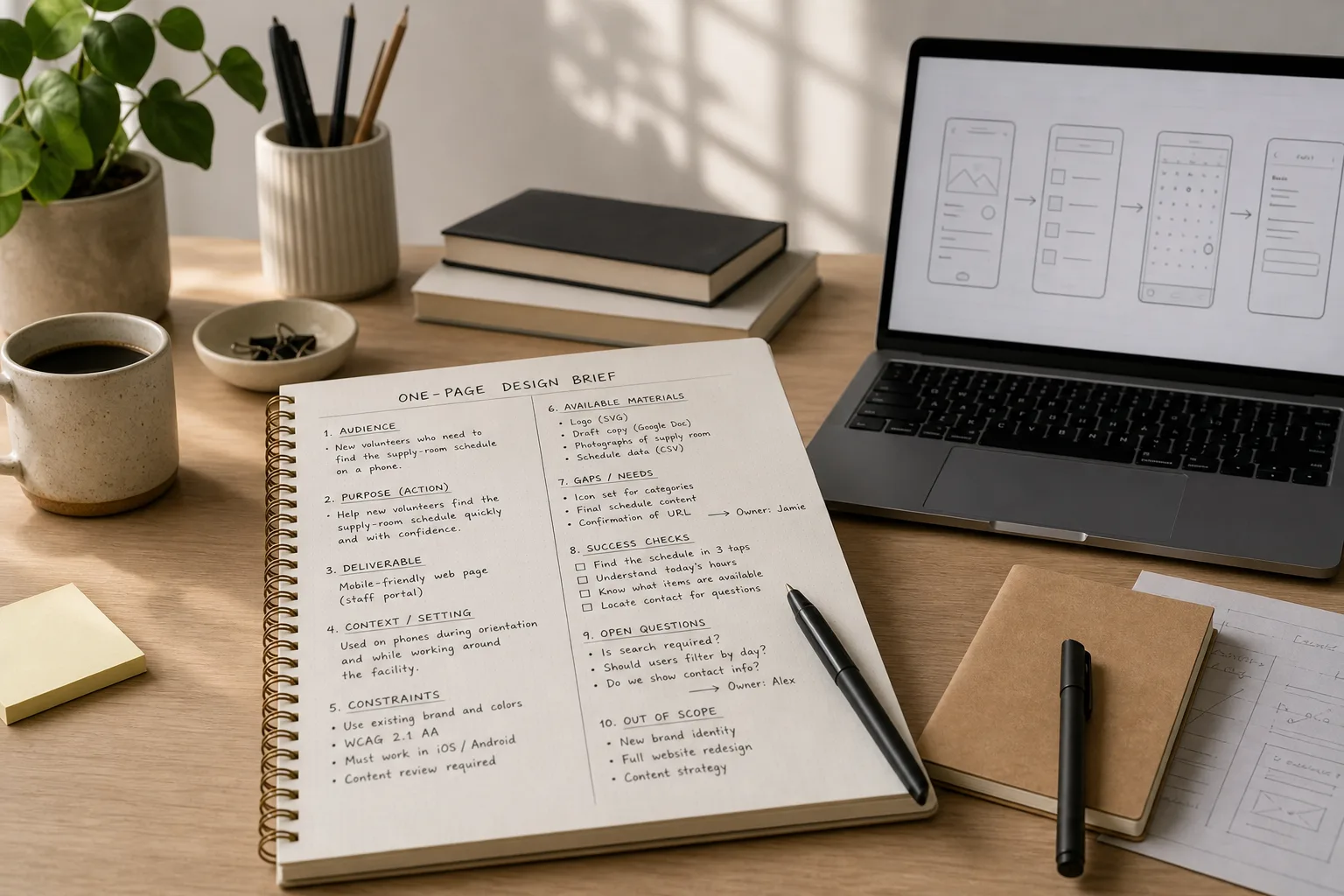
A One-Page Brief Before You Open the Design App
A one-page design brief helps you settle audience, purpose, constraints, and open decisions before visual exploration…

The Button That Looks Clickable but Does Nothing
Make interface buttons easier to trust by separating active controls from decoration with contrast, shape, clear…